OPC UA Integration Guide — Spin Robotics Tightening System
This guide describes how to connect to the Spin Robotics OPC UA server and consume tightening results. Unified Automation UAExpert is used as the reference client throughout.
Prerequisites
- UAExpert installed (available from unified-automation.com)
- Network access to the device running the Spin Robotics OPC UA server
- Default server endpoint:
opc.tcp://<host>:4840
1. Connecting to the Server
- Open UAExpert.
- In the Project panel (top-left), right-click Servers and select Add Server…
- Enter the server endpoint URL, e.g.
opc.tcp://spinbridge.local:4840. - Click OK. The server appears under Servers in the project tree.
- Double-click the server entry (or right-click → Connect) to establish the connection.
Once connected, the Address Space panel (bottom-left) populates with the server’s node tree. Navigate to:
Objects
└── TighteningSystem          (ns=1;i=5003)
    ├── Identification
    ├── AssetManagement        (ns=1;i=5005)
    └── ResultManagement       (ns=1;i=5011)
        └── Results
            └── LatestResult
2. Browsing Asset Information
The AssetManagement node exposes the controller and tool identities.
- In the Address Space, expand
TighteningSystem→AssetManagement. - You will find two device nodes: SpinBridge (controller) and SpinTool (tool).
- Click a node to inspect its attributes in the Attributes panel on the right — manufacturer, serial number, firmware version, and hardware revision are all listed there.
Asset data is updated automatically when the device connects and reports its identity.
3. Subscribing to Result Events
The recommended way to receive results is to subscribe to events on the ResultManagement node. This ensures every result is delivered without risk of missing operations that complete within a polling interval.
Setting up the Event View
- In UAExpert, open the Event View document tab. If not already open, add it via Document → Add Document → Event View.
- In the Address Space, navigate to
TighteningSystem→ResultManagement(ns=1;i=5011). - Drag the ResultManagement node into the Configuration pane of the Event View.
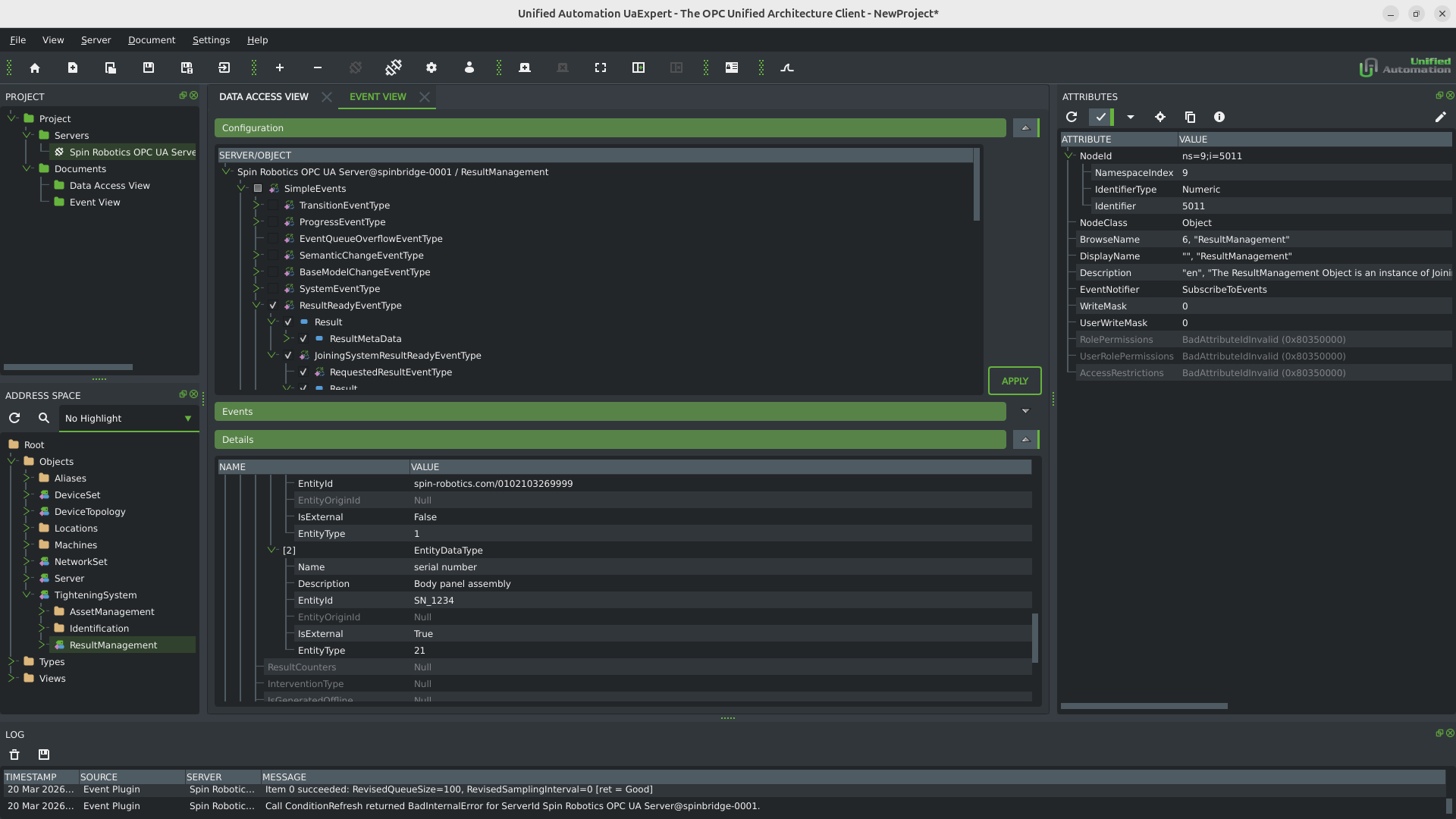
UAExpert will display a list of available event types. Enable SimpleEvents > ResultReadyEventType and select the fields you want to monitor — at minimum:
Result— the completeJoiningResultDataTypepayload
- Click Apply (or the green play button in the toolbar).
The server will now push a notification each time a joining operation completes.
Reading Incoming Events
Each event appears as a new row in the Events View. Select a row to inspect the full result payload:
- Metadata — result UUID, overall pass/fail evaluation, timestamps.
- overallResultValues — final torque (Nm), final angle (°), and final insertion depth (mm), each with measured value, target, limits, and individual evaluation.
- associatedEntities — traceability data: tool ID, program, and any external identifiers (serial number, joint ID, batch, etc.) attached by the robot program.
- Trace data — time-series channels (torque, angle, speed, force, insertion depth) captured during the operation.
The screenshot below shows UAExpert with an active event subscription. The bottom pane displays an incoming result with the associatedEntities array expanded, showing the entity fields (entityId, isExternal, entityType, description). The log at the bottom confirms successful event delivery.
4. Polling the Latest Result (Alternative)
If event subscriptions are not available in your client, you can poll the LatestResult variable instead.
- In the Address Space, navigate to
TighteningSystem→ResultManagement→Results→LatestResult. - Drag the node into the Data Access View.
- The variable updates each time a new result is stored.
Note: Polling risks missing results if two operations complete within a single poll interval. Event subscription is strongly preferred for production use.
5. Understanding the Result Structure
Metadata
| Field | Description |
|---|---|
resultId | Unique UUID for this result |
resultEvaluation | Overall outcome: OK or NOT_OK |
processingTimes | Start and end timestamps of the operation |
associatedEntities | Traceability references — see below |
Measured Parameters (overallResultValues)
| Parameter | Unit | Description |
|---|---|---|
| Final Torque | Nm | Peak torque with target and min/max limits |
| Final Angle | ° | Rotation angle from snug torque to final torque, with limits |
| Final Insertion Depth | mm | Measured insertion depth with target and limits |
Each entry carries measuredValue, targetValue, lowLimit, highLimit, resultEvaluation, physicalQuantity, and engineeringUnits.
Process Curve (Trace Data)
Full time-series data is included in every result for detailed process analysis:
| Channel | Unit | Description |
|---|---|---|
tool_torque | Nm | Torque measured at the tool |
tool_angle | ° | Cumulative rotation angle |
tool_speed | RPM | Rotational speed |
driving_force | N | Linear force applied by the robot |
driving_speed | mm/s | Linear insertion speed |
insertion_depth | mm | Current insertion depth |
6. Traceability — Associated Entities
Every result embeds an associatedEntities array that links the result to the physical assets and contextual identifiers that were present during the operation.
Always-present entities (populated automatically)
| Entity | entityType | Description |
|---|---|---|
| Tool ID | 1 (TighteningUnit) | Identifies which tool performed the operation |
| Program | 27 (JoiningProcess) | The program or recipe that was executed |
External entities (populated by the robot program)
Any additional identifiers relevant to the application can be attached — for example a product serial number, a joint location, a batch number, or a work order. These are provided by the UR robot program and the schema imposes no constraints on what is included.
EntityDataType Fields
| Field | Type | Required | Description |
|---|---|---|---|
entityId | String | Yes | Unique identifier (serial number URI, UUID, or application key) |
entityType | Int16 | Yes | Type code per IJT Table 226. Common: 1 = TighteningUnit, 27 = JoiningProcess |
name | String | No | Human-readable label (e.g. "tool", "program", "VIN") |
description | String | No | Additional free-text information |
entityOriginId | String | No | Identifier of the system that assigned entityId |
isExternal | Boolean | No | true if the ID was provided by an external system (MES, robot program) |
Example Payload
[
  {
    "name": "tool",
    "description": "SN-10042",
    "entityId": "spin-robotics.com/SN-10042",
    "entityOriginId": null,
    "isExternal": false,
    "entityType": 1
  },
  {
    "name": "program",
    "description": "M5 Screw Standard",
    "entityId": "a3f7c2d1-4b8e-4f3a-9c1d-2e5b7a0f4c6e",
    "entityOriginId": null,
    "isExternal": false,
    "entityType": 27
  },
  {
    "name": "serial number",
    "description": "Body panel assembly — station 3",
    "entityId": "BP-2024-00471",
    "entityOriginId": "MES-LINE-3",
    "isExternal": true,
    "entityType": 21
  },
  {
    "name": "joint id",
    "description": "Front-left door hinge, upper bolt",
    "entityId": "JOINT-FL-HINGE-TOP",
    "entityOriginId": null,
    "isExternal": true,
    "entityType": 10
  }
]
Because all entities are embedded directly in the result event, a consumer receives everything needed to file the result into a traceability or MES system immediately — no secondary lookups required.
7. Namespace Reference
| Index | URI | Purpose |
|---|---|---|
| 0 | OPC UA core | Built-in OPC UA types |
| 1 | http://spin-robotics.com/TighteningSystem/ | Spin custom address space |
| 2 | OPC UA DI | Device Integration base types |
| 4 | OPC UA Machinery | Machinery base types |
| 5 | OPC UA Machinery/Result | Result management types |
| 6 | OPC UA AMB | Asset Management Base |
| 7 | OPC UA IJT/Base | Joining Technologies base types |
| 8 | OPC UA IJT/Tightening | Tightening-specific extensions |
Was this article helpful?
That’s Great!
Thank you for your feedback
Sorry! We couldn't be helpful
Thank you for your feedback
Feedback sent
We appreciate your effort and will try to fix the article